
See how Amazon Ads authorization works
Seller Ascent AI uses the Amazon Ads Advertising APIs (application programming interfaces) to access campaign data, build campaigns, get recommendations, and manage them. Here is what you will see when you click "Authorize" and how to complete each step.
- 1
Click Authorize Amazon Ads access
Select the Authorize Amazon button. This will redirect you to Amazon.com pages that enable you to grant Seller Ascent AI access.
Authorize Amazon Ads accessClick to expandClick to collapse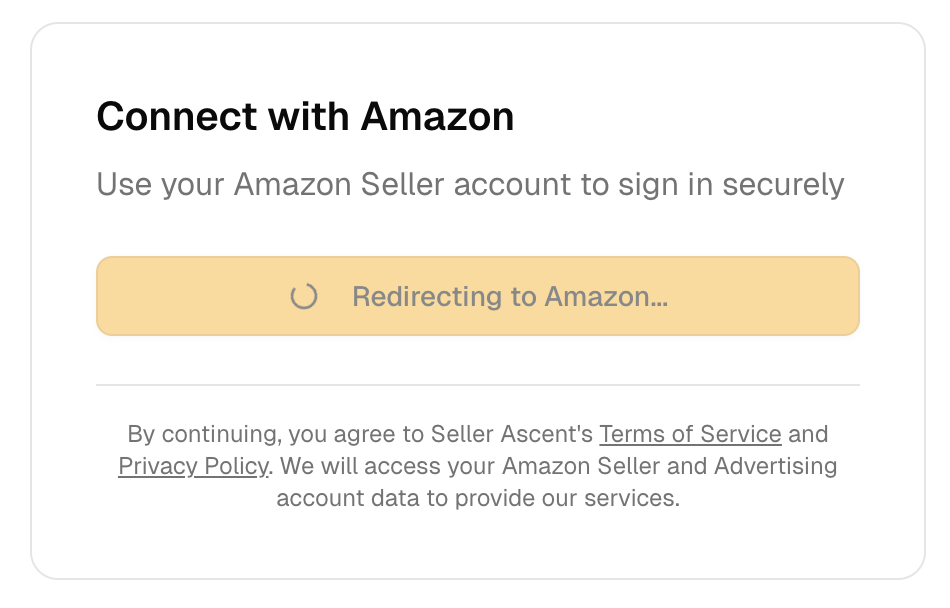
- 2
Sign in with your Amazon account
Use the Amazon account that you use for Amazon Ads (advertising.amazon.com) and Amazon Seller Central (sellercentral.amazon.com).
Note: Amazon detects the account currently logged in on amazon.com. If you need to use a different account, log out of amazon.com and continue through this workflow again. If your Amazon Ads and Seller Central accounts are different, log out of amazon.com before continuing to Seller Central during setup.Amazon sign-in screenClick to expandClick to collapse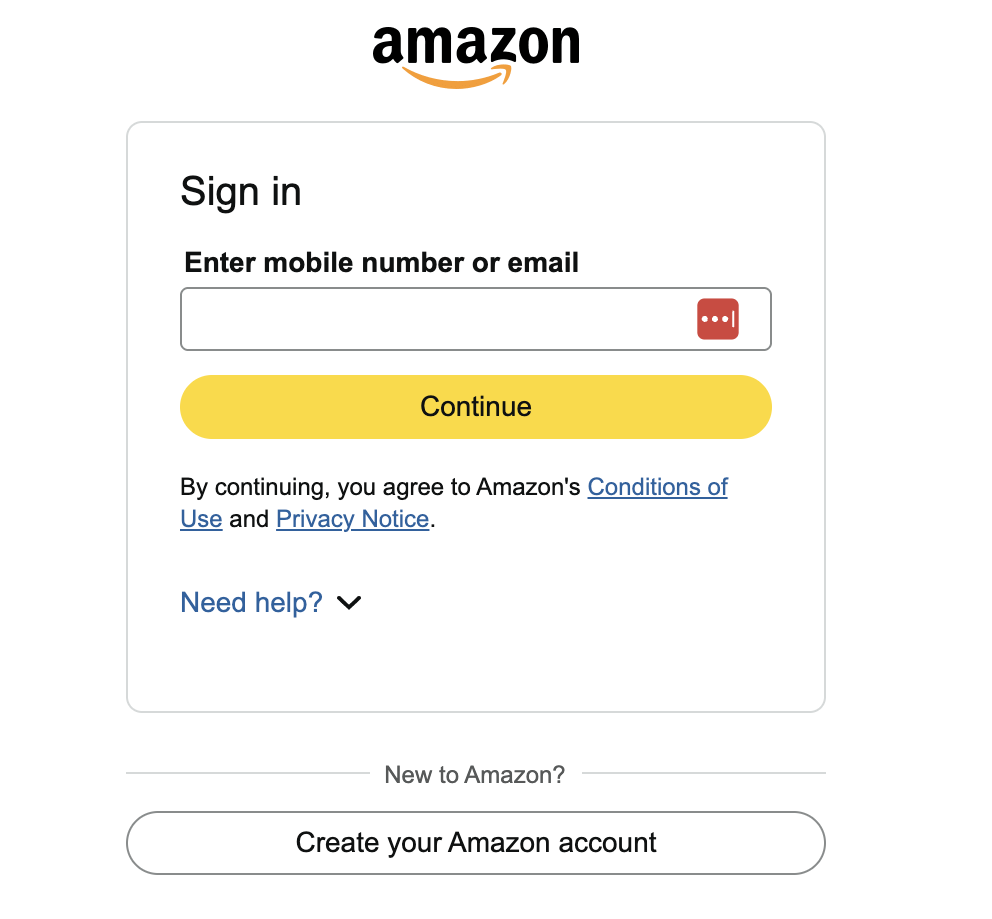
- 3
Choose account access
Select either all accounts or only selected accounts. Both options work. If you choose a single account, you will select the account to share in the next step.
All current and future accountsClick to expandClick to collapse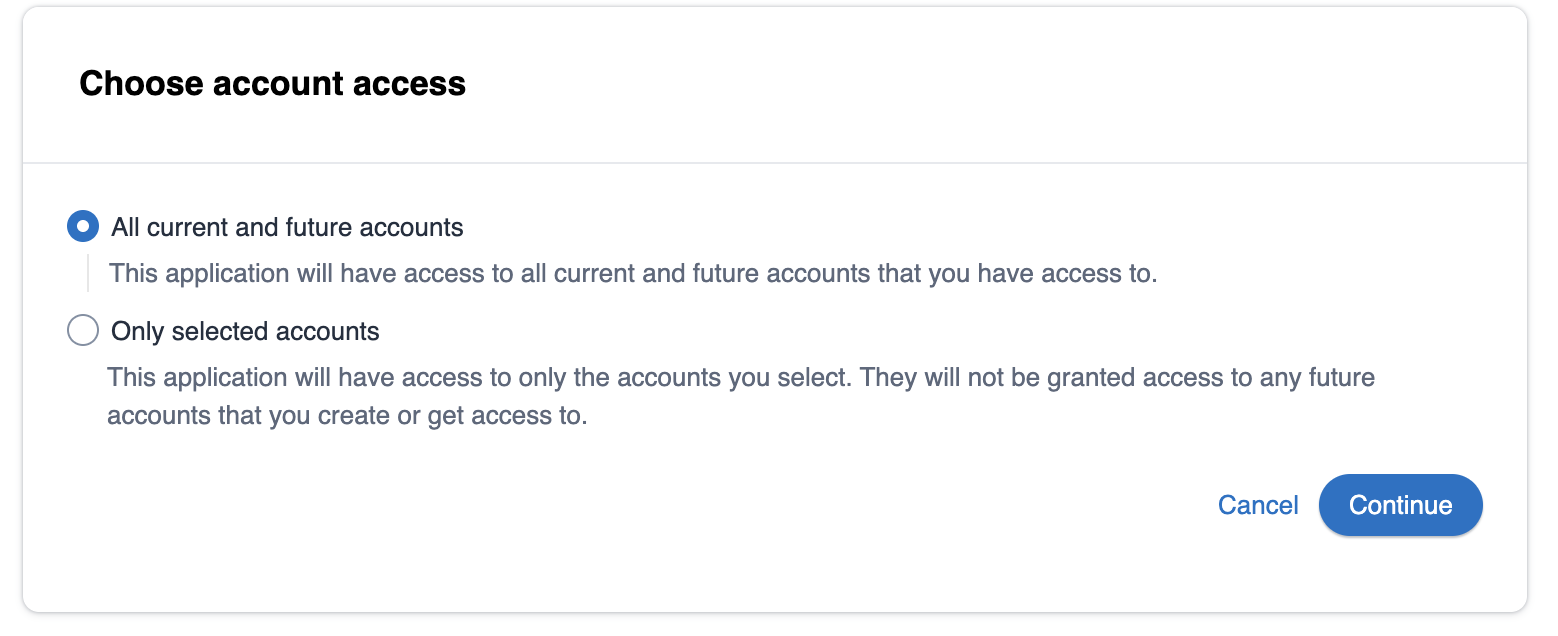 Only selected accountsClick to expandClick to collapse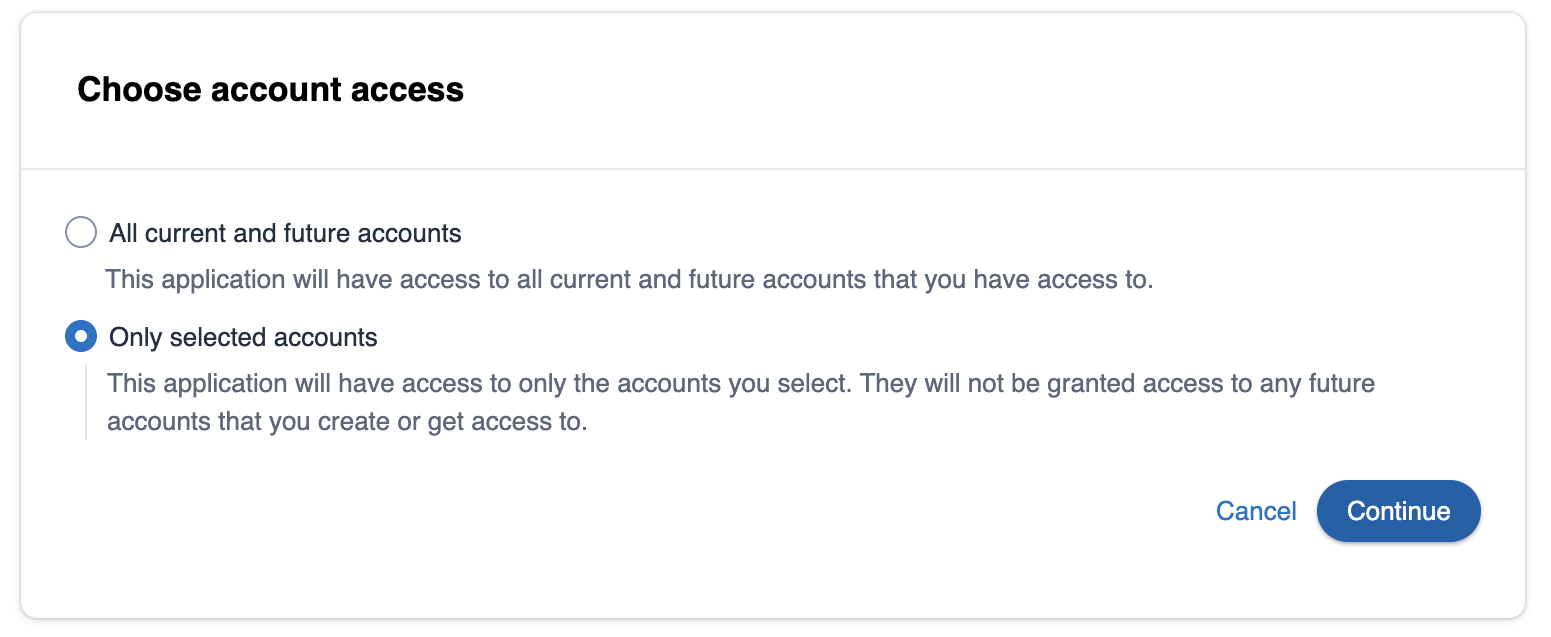
3b) Select the specific account to share
If you picked only selected accounts, choose the account to share with Seller Ascent AI.
Account selection listClick to expandClick to collapse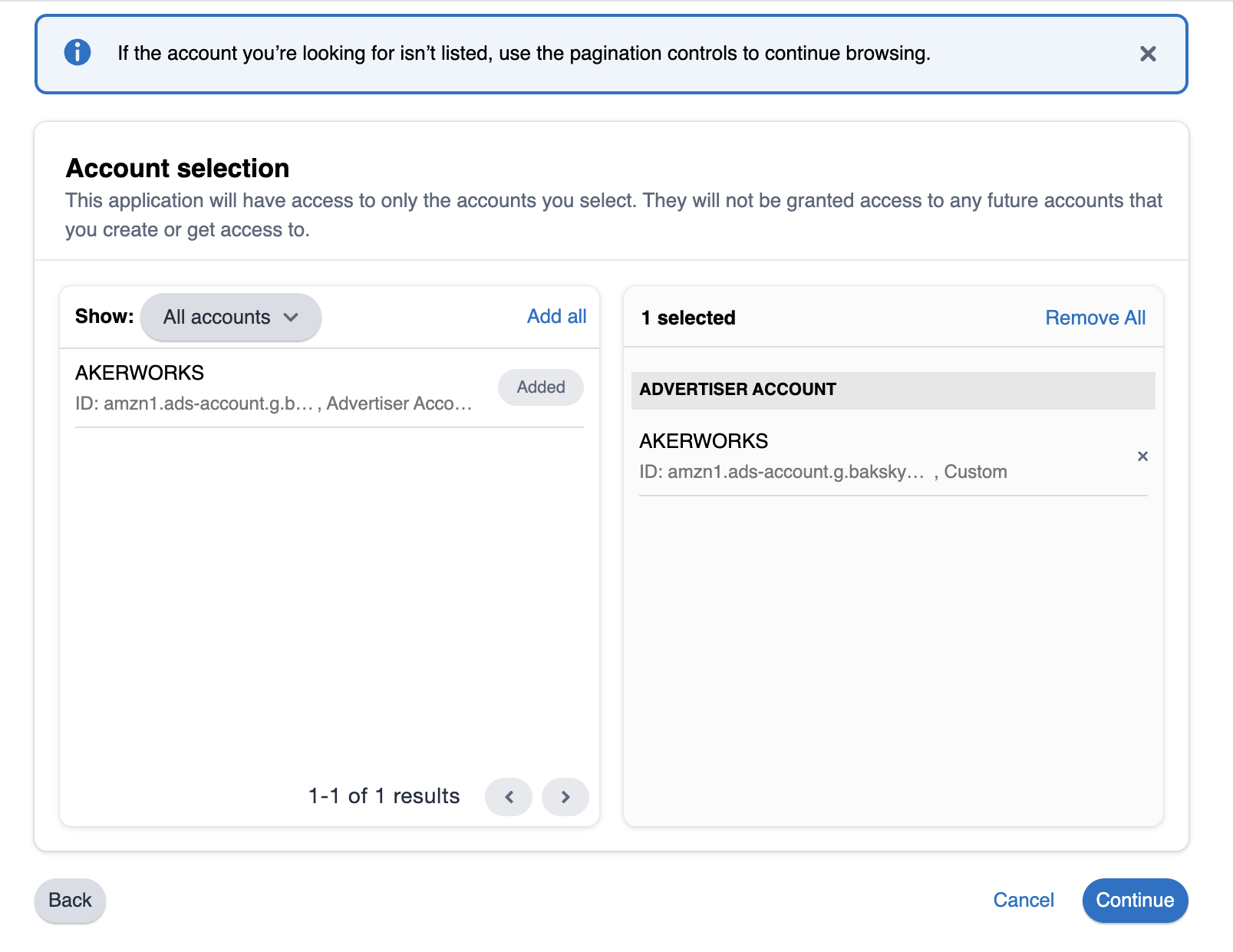
- 4
Select an advertiser profile
If your account has access to multiple advertising profiles, we will ask you which to add to Seller Ascent AI. Each profile becomes a separate account in Seller Ascent AI, and each advertising account requires its own subscription.
Advertiser profile selectionClick to expandClick to collapse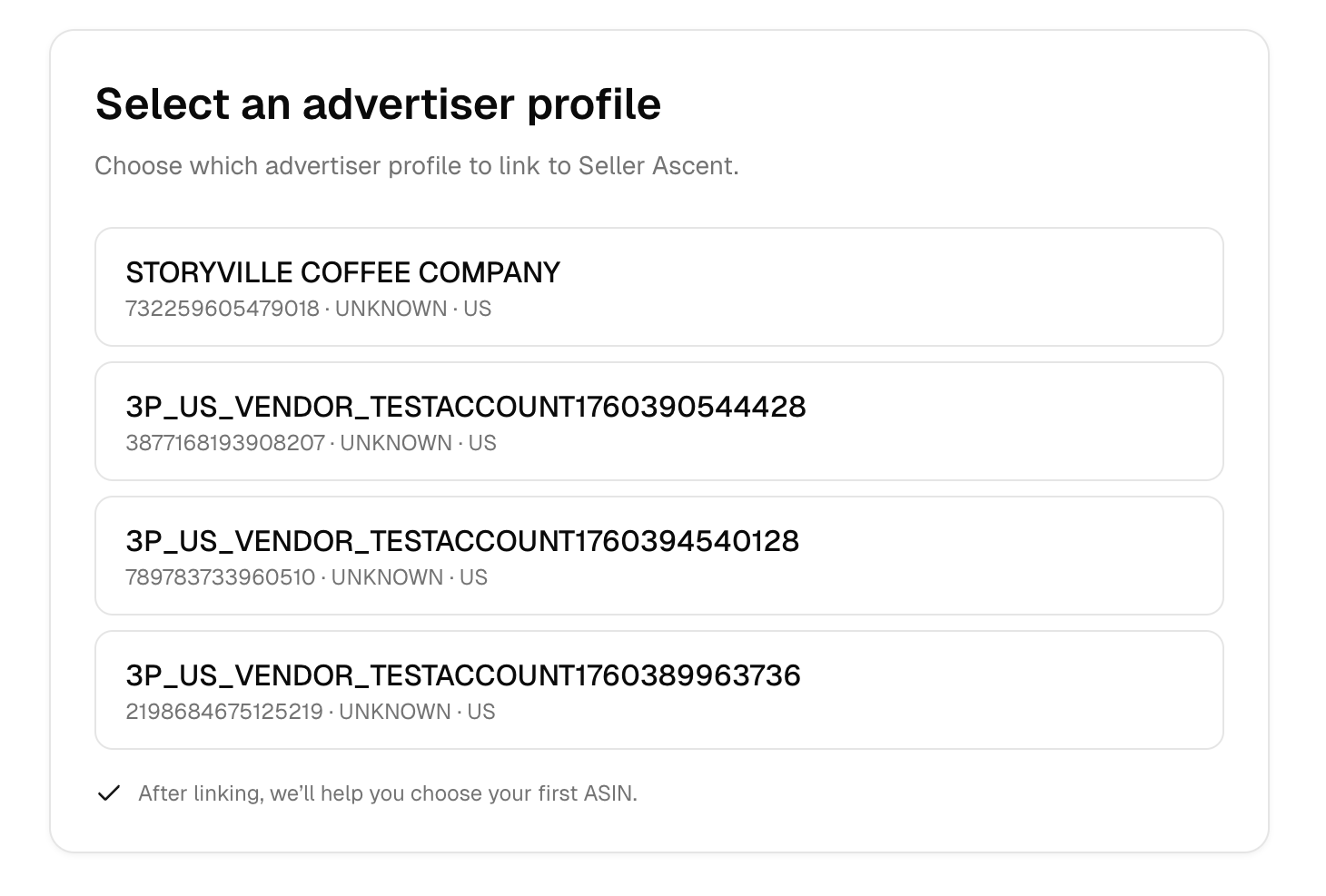
- 5
Done - choose a product to advertise
Once you finish authorization, your next step is to select a product and begin building your first campaign.