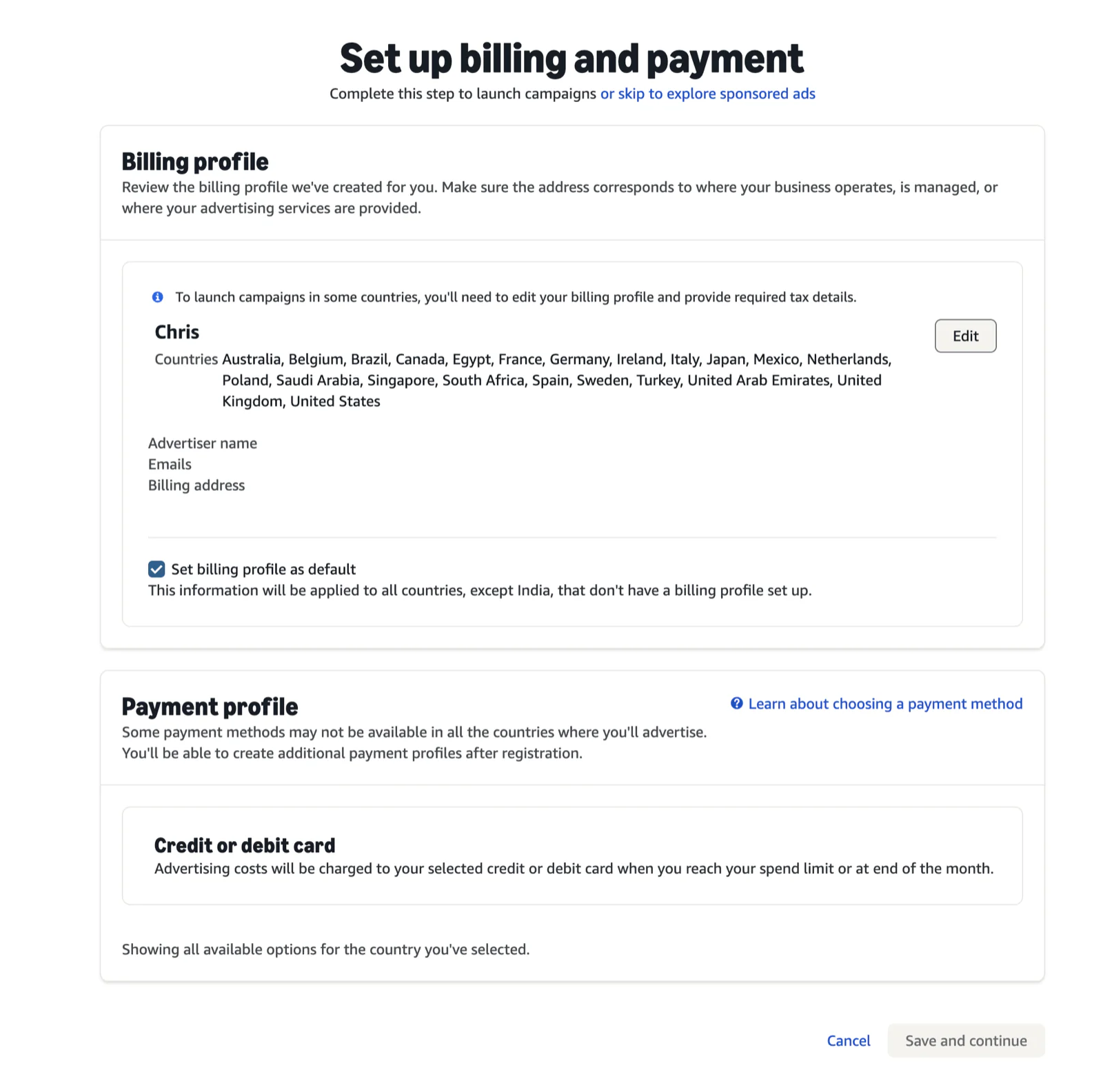
Set up your Amazon Ads account
Follow these steps to create your Amazon Ads account and connect it to the right Seller Central profile.
- 1
Open the Amazon Ads registration page
Go to advertising.amazon.com/ads-account/registration. Sign in with your business email if prompted.
Sign in to startClick to expandClick to collapse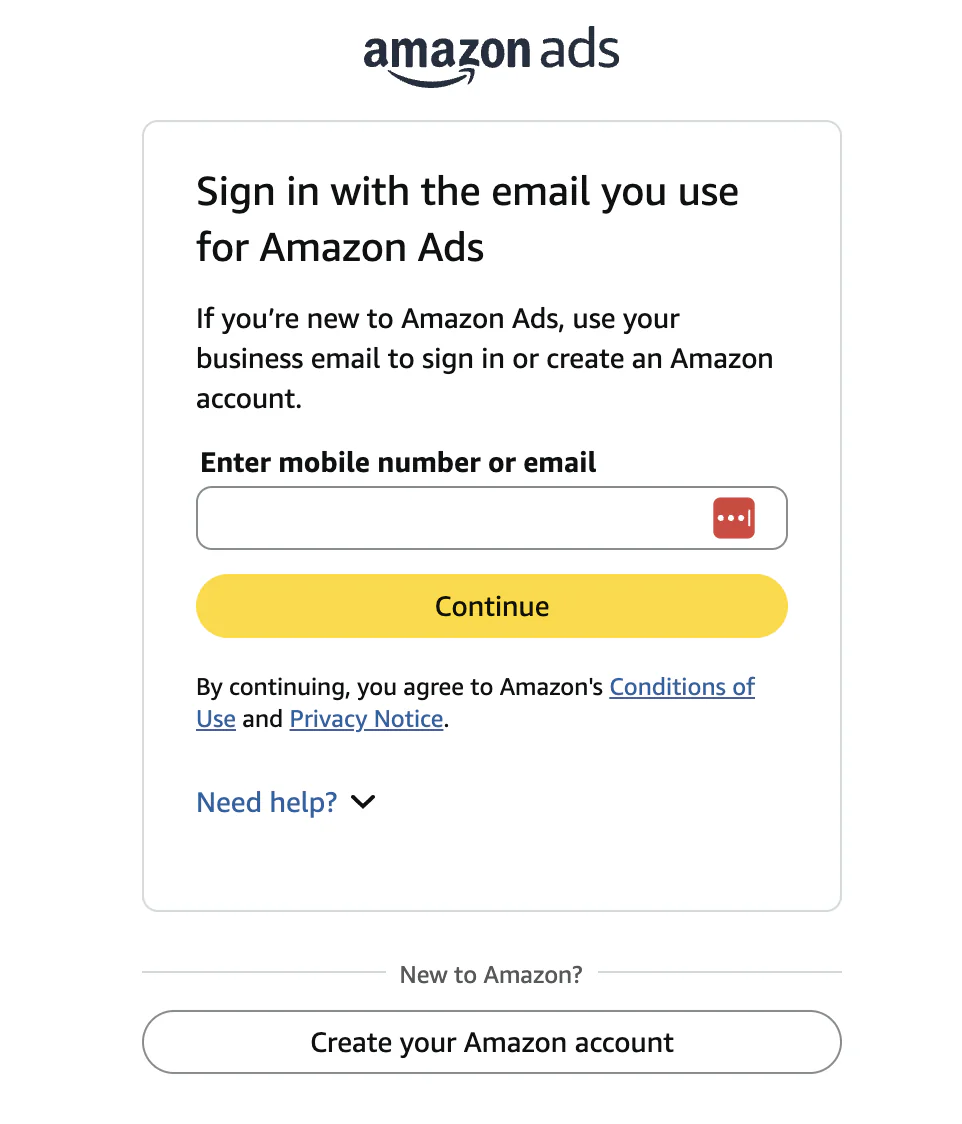
- 2
Confirm your business email or switch accounts
Make sure Amazon recognizes the correct business email. If not, choose Switch Account and select the email tied to your Seller Central account.
Switch accountClick to expandClick to collapse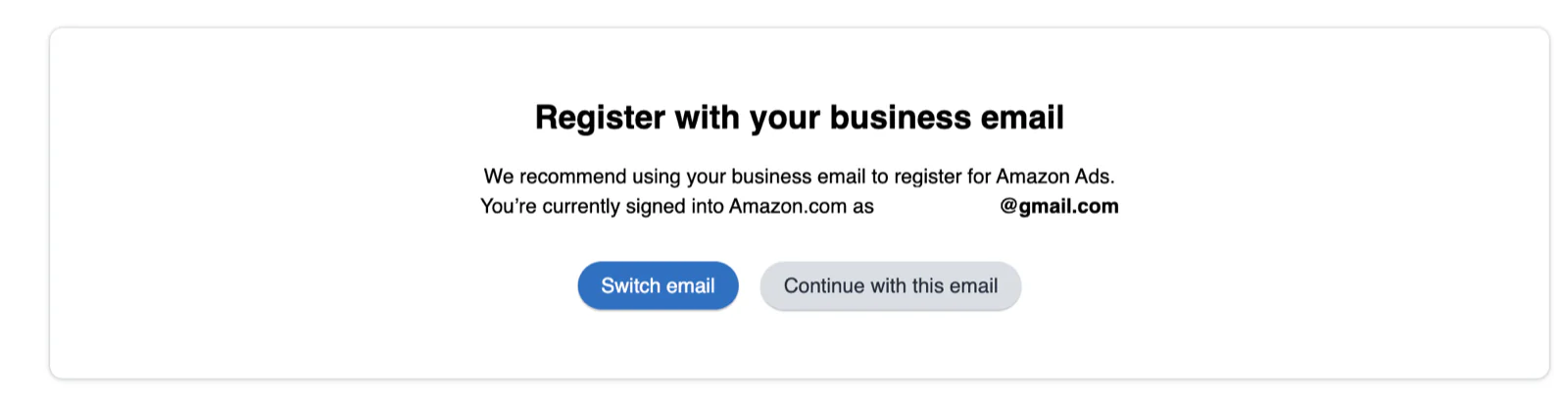 If switching does not work: visit amazon.com, sign out, then return to the registration flow.Sign out of AmazonClick to expandClick to collapse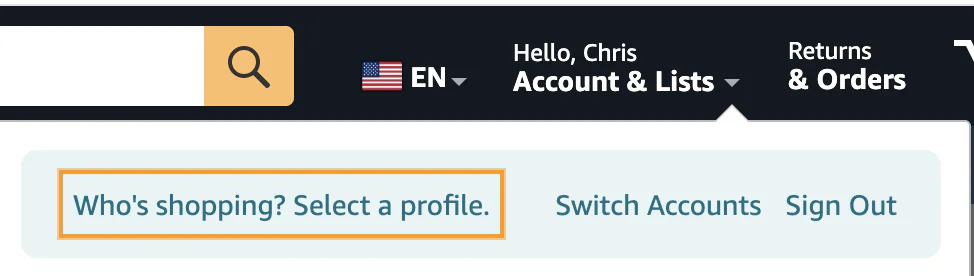
- 3
Select the seller account and complete signup
Choose the seller account you want to advertise. If you do not see it, confirm the email you switched to matches your Seller Central login. Then complete the signup details on the page.
Select seller accountClick to expandClick to collapse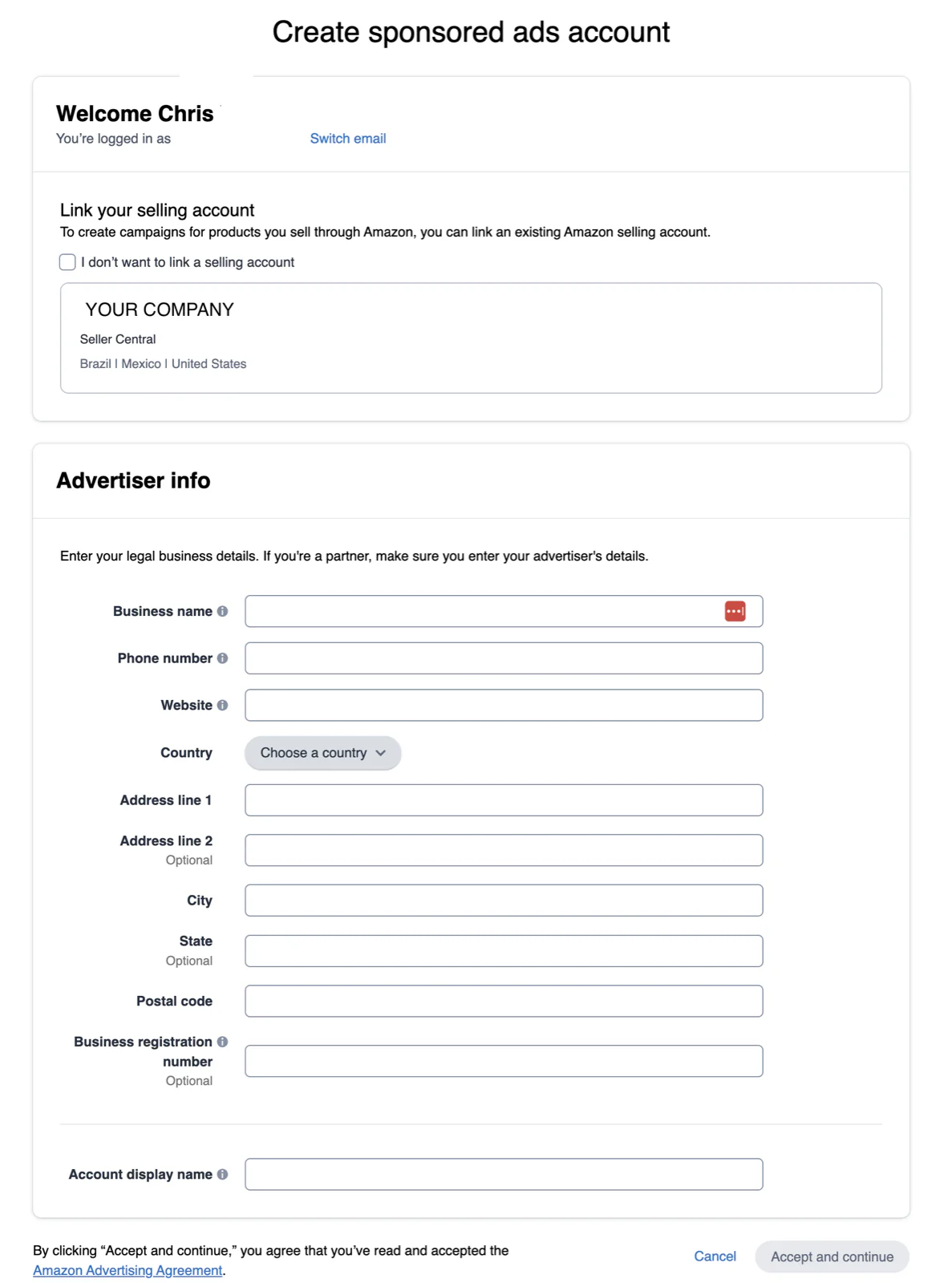
- 4
Add billing and payment information
Enter your billing and payment details, then click Save and Next. This can take a minute or two to process.
Billing and paymentClick to expandClick to collapse